

KCMainViewController.m
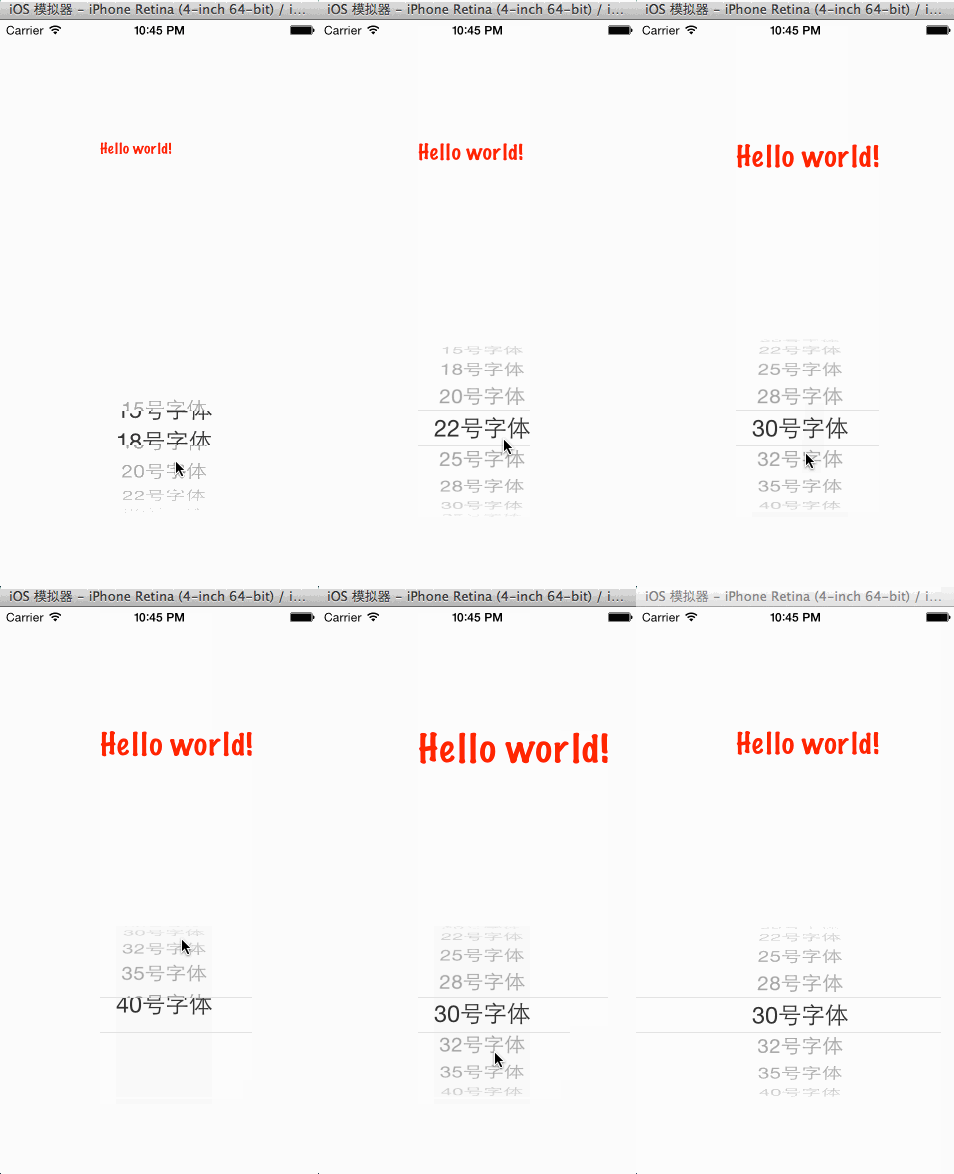
// // KCMainViewController.m // RefreshView // // Created by Kenshin Cui on 14-3-17. // Copyright (c) 2014年 Kenshin Cui. All rights reserved. // #import "KCMainViewController.h" #import "KCView.h" @interface KCMainViewController ()<UIPickerViewDataSource,UIPickerViewDelegate>{ KCView *_contentView; NSArray *_fontSize; } @end @implementation KCMainViewController - (void)viewDidLoad { [super viewDidLoad]; [self initLayout]; [self addPickerView]; } -(void)initLayout{ _fontSize=@[@15,@18,@20,@22,@25,@28,@30,@32,@35,@40]; _contentView=[[KCView alloc]initWithFrame:CGRectMake(0, 0, 320, 300)]; _contentView.backgroundColor=[UIColor whiteColor]; _contentView.title=@"Hello world!"; _contentView.fontSize=[_fontSize[0] intValue]; [self.view addSubview:_contentView]; } -(void)addPickerView{ UIPickerView *picker=[[UIPickerView alloc]initWithFrame:CGRectMake(0, 300, 320, 268)]; picker.dataSource=self; picker.delegate=self; [self.view addSubview:picker]; } -(NSInteger)numberOfComponentsInPickerView:(UIPickerView *)pickerView{ return 1; } -(NSInteger)pickerView:(UIPickerView *)pickerView numberOfRowsInComponent:(NSInteger)component{ return _fontSize.count; } -(NSString *)pickerView:(UIPickerView *)pickerView titleForRow:(NSInteger)row forComponent:(NSInteger)component{ return [NSString stringWithFormat:@"%@号字体",_fontSize[row] ]; } -(void)pickerView:(UIPickerView *)pickerView didSelectRow:(NSInteger)row inComponent:(NSInteger)component{ _contentView.fontSize=[[_fontSize objectAtIndex:row] intValue]; //刷新视图 [_contentView setNeedsDisplay]; } @end运行效果:
前面我们也说过,Quartz 2D的图形上下方除了可以绘制到层上还可以绘制到位图、PDF等,这里我们就介绍一下如何利用Quartz 2D绘制图像到位图及PDF中。
上面的示例中一直都是在drawRect:方法中利用UIGraphicsGetCurrentContext()方法取得上下文,要得到位图或者PDF的上下文可以利用UIGraphicsBeginImageContext(CGSize size)和UIGraphicsBeginPDFPageWithInfo(CGRect bounds, NSDictionary *pageInfo)方法。位图图形上下文和PDF图形上下文UIKit是不会负责创建的,所以需要用户手动创建,并且在使用完后关闭它。在使用UIKit中系统创建的图形上下文的时候,我们只能在drawRect:方法中使用,由于这两类图形上下文是由我们手动创建的因此可以放到任何方法中调用。此外,这两个方法开启的图形上下文并没有返回值,如果我们要得到我们创建的图形上下文只要在创建上下文之后、关闭之前调用UIGraphicsGetCurrentContext()方法,此时取得的上下文即是我们自己创建的图形上下文。
绘制到位图下面利用位图图形上下文给一个图片添加水印,在下面的程序中我们首先创建上下文,然后在上下文中绘制图片、直线和文本,最后从当前位图上下文中取得最终形成的新图片显示到界面。
// // KCMainViewController.m // Quartz2D // // Created by Kenshin Cui on 14-3-17. // Copyright (c) 2014年 Kenshin Cui. All rights reserved. // #import <CoreText/CoreText.h> #import "KCMainViewController.h" #import "KCView.h" #import "KCView2.h" #import "KCView3.h" @interface KCMainViewController () @end @implementation KCMainViewController - (void)viewDidLoad { [super viewDidLoad]; UIImage *image=[self drawImageAtImageContext]; UIImageView *imageView=[[UIImageView alloc]initWithImage:image]; imageView.center=CGPointMake(160, 284); [self.view addSubview:imageView]; } #pragma mark 利用位图上下文添加水印效果 -(UIImage *)drawImageAtImageContext{ //获得一个位图图形上下文 CGSize size=CGSizeMake(300, 188);//画布大小 UIGraphicsBeginImageContext(size); UIImage *image=[UIImage imageNamed:@"photo2.png"]; [image drawInRect:CGRectMake(0, 0, 300, 188)];//注意绘图的位置是相对于画布顶点而言,不是屏幕 //添加水印 CGContextRef context=UIGraphicsGetCurrentContext(); CGContextMoveToPoint(context, 200, 178); CGContextAddLineToPoint(context, 270, 178); [[UIColor redColor]setStroke]; CGContextSetLineWidth(context, 2); CGContextDrawPath(context, kCGPathStroke); NSString *str=@"Kenshin Cui"; [str drawInRect:CGRectMake(200, 158, 100, 30) withAttributes:@{NSFontAttributeName:[UIFont fontWithName:@"Marker Felt" size:15],NSForegroundColorAttributeName:[UIColor redColor]}]; //返回绘制的新图形 UIImage *newImage=UIGraphicsGetImageFromCurrentImageContext(); //最后一定不要忘记关闭对应的上下文 UIGraphicsEndImageContext(); //保存图片 // NSData *data= UIImagePNGRepresentation(newImage); // [data writeToFile:@"/Users/kenshincui/Desktop/myPic.png" atomically:YES]; return newImage; } @end运行效果: